
Hardware Components
- VR Headsets (Pico 4 Ultra)
- Function: These headsets are worn by residents to experience virtual reality.
- Features:
- Removable facepad for cleaning
- High-quality VR lenses
- Built in speakers and microphone.
- Adjust head straps for comfort
- Battery Life: Approximately 2 hours of continuous use.
- Buttons
- Power Button use this button to turn the headset on and off
-png.png?width=389&height=260&name=Rendever%20Package%20Document%20(1)-png.png)
- Power Button use this button to turn the headset on and off
- Controllers
- Two Pico 4 Ultra controllers
- Buttons:
- Only a few will be used to interact with the Rendever experience
- The Trigger button used to select and enter your password when connecting to Wi-Fi, accompanied by a virtual laser pointer inside the headset
- Home button used to reorient within the experience

-
VR Headsets (Pico G3)
- Function: These headsets are worn by residents to experience virtual reality and do not come with controllers.
- Features:
- Removable facepad for cleaning.
- High-quality VR lenses.
- Built-in speakers and microphone.
- Adjustable head straps for comfort.
- Battery Life: Approximately 2 hours of continuous use.
- Buttons:
- Power button on the top side of the headset, used for turning the headsets on/off

- Back button on the right hand side of the headset, with the horizontal line through it. Used to access Wi-Fi settings, and return backward for the Wi-Fi settings screen.
- Select Button on the right hand side of the headset, the largest button in the center of the other two button. Use this button to select things inside the headset interface and operate the virtual keyboard
_pages-to-jpg-0001.jpg?width=400&height=337&name=Getting_Started_Rendever.ai%20(1)_pages-to-jpg-0001.jpg)
- Home button on the right hand side of the headset, the bottom most button. Use this to return to the Rendever porch if you ever wish to return to it.
- Power button on the top side of the headset, used for turning the headsets on/off
-
Rendever Tablet
- Function: Acts as the central control device for managing VR sessions. Every VR headset will see what the tablet displays at the same time.
- Features:
- Large touchscreen for easy navigation.
- Access to all Rendever products in one place
- Long battery life.
- Battery Life: Approximately 3-4 hours of continuous use.
-
Chargers
- Function: Used to charge the VR headsets and the tablet.
- Features:
- Each device comes with its specific charger.
- USB-C type chargers for fast charging.
Connecting Devices to Wi-Fi Through Rendever Software
-
Connecting Your Tablet to Wi-Fi:
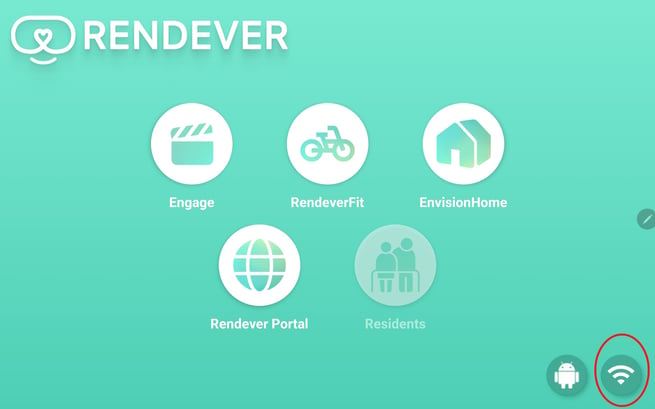
- From the Rendever home screen (where you can see the Engage button as well as the other experience buttons) select the Wi-Fi logo, the dot with 3 curved lines above it.
2. This will bring you to the connections screen. Select the Wi-Fi network you would like to connect to.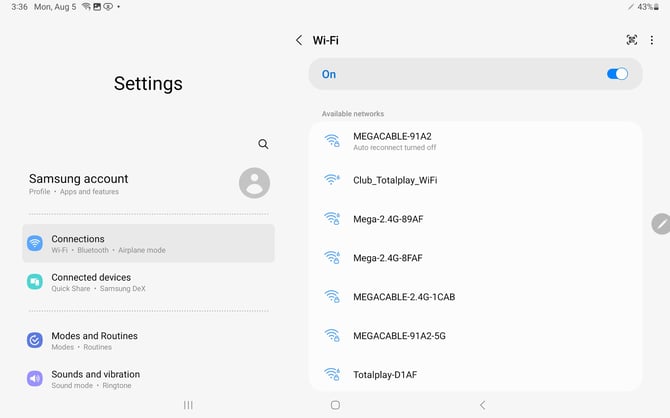
3. Once selected, enter the password where prompted, you will get a verification that you have connected.
4. Once connected, you can return to the Rendever home screen, by selecting the center most button at the bottom of the tablet.
5. Click on Engage to open Rendever, and begin your experiences. -
Connecting Your Pico 4 Ultra Headset to Wi-Fi:
- Press and hold the power button to turn on the headset
- Put on the headset and look for 'No Connection Detected' banner, signaling you are not connected to Wi-Fi.
- Click the thumbstick in 5 times quickly to enter settings.

4. Use the trigger button and laser pointer to click on 'Wi-Fi Settings' at the bottom of the screen.
5. Select your Wi-Fi network, enter the password using the virtual keyboard, and press 'Connect'.

6. Restart the headset by holding the power button until the LED indicator starts blinking and turns off, then turn it back on. -
Connecting Your G3 Headset to Wi-Fi:
- Press and hold the power button on the headset
- Put on the headset and look for 'No Connection Detected' if not connected to Wi-Fi.
- Click the 'Back' button on the right side of the headset five times to access settings.
4. Use the 'Select' button to click on 'Wi-Fi Settings' at the bottom of the screen.
5. Select your Wi-Fi network, enter the password using the virtual keyboard, and press 'Connect'.
6. Press the back button to return to the main menu, then select 'Exit' to return to the porch.
7. Restart the headset by holding the power button until the LED indicator starts blinking and turns off, then turn it back on.
Note: If you accidently enter the wrong password, select the gear icon near the Wi-Fi network name, and click "Forget Network" to try again.
Key Features
Videos:
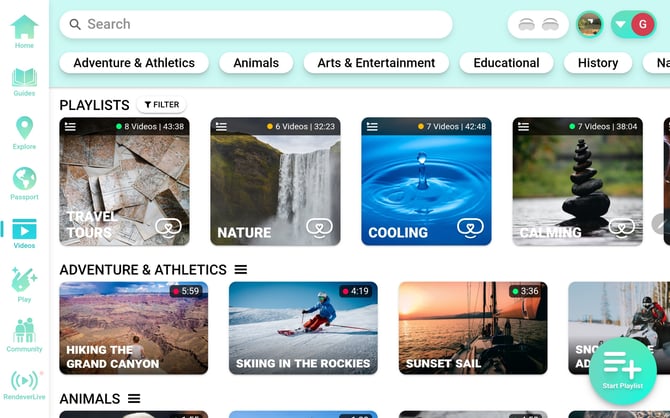
- Dive into a library of immersive videos, carefully categorized to ensure comfort for all users.
How to Use the Videos Feature
Step 1: Access the Videos Feature
- Open the Engage App: Navigate to the Engage app on your tablet.
- Select "Videos" From the Engage dashboard, Tap "Videos" from the navigation bar on the left side of the screen.
Step 2: Browse Available Videos:
- View the video list: the available videos will be is displayed similarly to the activity guides,
- Time Duration: Each video shows its length, Shows how long each video lasts.
- Movement Intensity: Indicates the level of movement in the video (mild
.png?width=18&height=18&name=Rendever%20Director%20_%20Videos%20(2).png) , moderate
, moderate .png?width=17&height=18&name=Rendever%20Director%20_%20Videos%20(3).png) , intense
, intense .png?width=23&height=23&name=Rendever%20Director%20_%20Videos%20(4).png) ) to help avoid motion sickness
) to help avoid motion sickness
Step 3: Select a Video
- Open the Video Details: Tap on a video to view more details.
- Description: Read a brief overview of the video.
- Start the Experience: Click the "Start" button to begin the video.
.png?width=670&height=333&name=Rendever%20Director%20_%20Videos%20(1).png)
Step 4: Start the Video
- Click "Start" to begin the video. The VR headsets will synchronize with the video, placing all participants in the immersive experience.
- The video will play without any user interface on the headsets, providing a seamless viewing experience for those in the headsets.
Using the Tablet Interface:
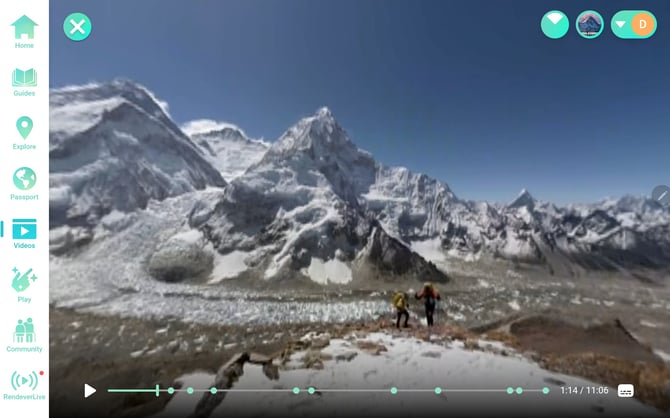
- Timeline: The tablet will display a timeline at the bottom of the screen. White circles on the timeline indicate points where questions will appear. Clicking on the timeline will move you to that point of the video.
- Engagement Questions: When the video reaches these points, questions will appear on the tablet that can be read aloud to help engage the residents.
- Compass: The compass feature displays as a green circle with a white triangle to indicate the current view of the tablet in the experience.
- Use the compass to direct your headsets users where to look to find landmarks on your screen. For example if you see some cool penguins when your compass shows 10'o clock, let your users know to look in that direction, and they will see them!
Getting more videos / Updating Your Video Library:
- Rendever has over 100 videos experiences to offer, because of this, not all the videos can fit on your tablet and headsets at the same time
- You can manage which videos currently you can play on your system by going to the Library section of your Community Portal at my.rendever.com
- Add videos to your library by clicking the plus button on the video to add it to your library on the left
- Then click Save when you're satisfied with you library

Play:
- Play interactive games designed specifically for older adults, to be cognitively stimulating, or relaxing.
- Ocean Explorer: Navigate a vast ocean expanse and swim with sea life
- iSpy: Score points and compete to see who can find objects the quickest
- Breathe: Relax in a serene environment. Listen to guided meditations or music while syncing your breathing with the breathe bubble
- Multisensory: Look out over the ocean while you listen to relaxing music time with an audio visualizer, and other fun effects
- Balloon Popper: Pop balloons as they rise over a horizon. Compete or try to improve your own high score over time.

Community:
- Stay connected with loved ones through photos, videos, and stories that can be viewed in a cozy virtual living room.
- Upload content through your MyRendever account by accessing my.rendever.com
- Upload on behalf of your Community, or send family members an invite to upload on behalf of their resident.
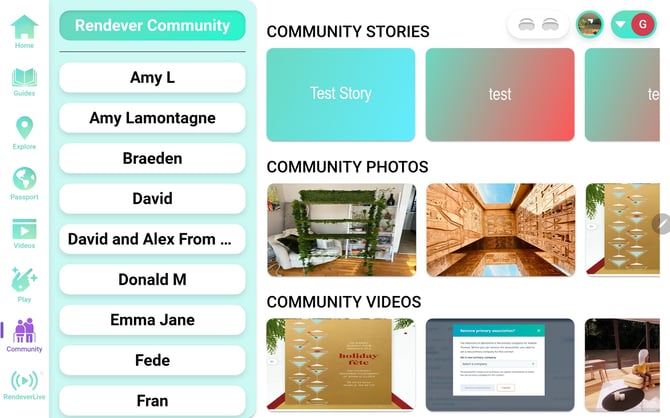
How to Use the Community Tab
Step 1: Access the Community Tab:
- Open the Rendever Engage app on your tablet.
- From the Engage dashboard, select "Community" from the navigation bar on the left side of the screen.
- Make sure you have uploaded your content through your community portal at my.rendever.com before accessing Community tab.
Step 2: Select the source of the experiences:
- Browse through the list of resident names to find experiences uploaded by their family or select your community name to display anything you or the staff have uploaded yourselves.
Step 3: Display Experiences:
- Click on any of the uploaded stories, photos, or videos to display them on the tablet and VR headsets.
- For 2D experiences, the content will be displayed on a big-screen TV, in a virtual living room setting
Step 4: Resident-Specific Experiences:
- Find the names of residents listed below the community name.
- Click on a resident’s name to display their specific experiences uploaded on behalf of their family.
Activity Guides:
- Enjoy pre-built tours based on themes, locations, and events.
- Read from full script that make every session engaging, easy to lead, and you the expert without barely needing to lift a finger!
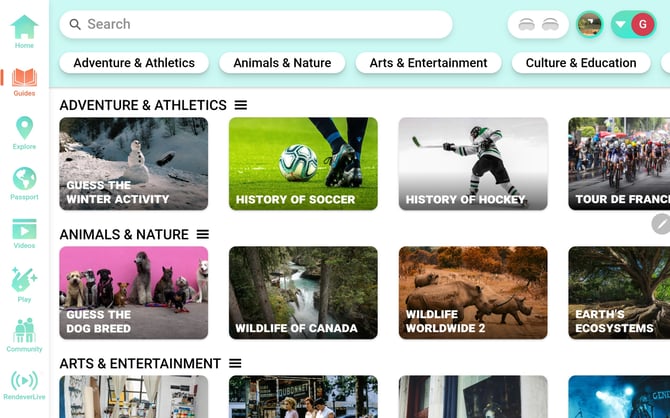
How to Use Activity Guides
Step 1: Access the Activity Guides
- Open the Engage app on your tablet.
- select "Guides" from the navigation bar on the left side of the screen.
Step 2: Browse Available Tours:
- Browse through the list of available tours, organized by category. Each guide is displayed as a row with an image, and its name.
Step 3 : Select a Tour
- Choose a tour that fits the interests and needs of your residents.
- Click on the tour to open its detailed view.
.png?width=670&height=338&name=Rendever%20Director%20_%20Guides%20(4).png)
Step 4: Start the Tour:
- Click "Start" to begin the experience. The VR headsets will synchronize with the tour, placing all participants in the 360-degree image.
- The VR headsets will display the immersive experience without an interface, while the tablet will show a user interface with a script.

Using the tablet interface:
-
-
The tablet includes a Script that the activity staff can read to guide the residents through the tour. The Script is unique for each location in the guide.
-
The script can be collapsed to make the location more viewable one the tablet, this is a great technique when casting the tablet to a TV.
-
Simply click the arrow at the bottom of the script to collapse the script
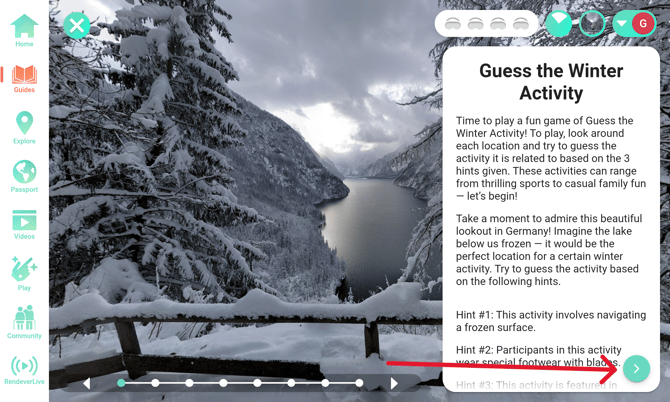
-
And the expand arrow to reveal the script once again
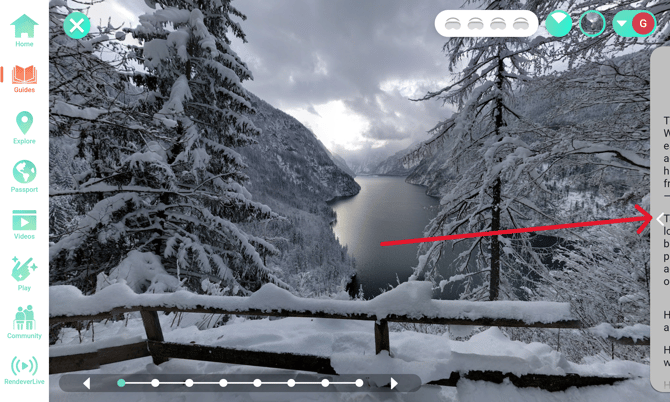
-
-
-
-
A timeline at the bottom represents the stops in the guide. Use the arrows at the beginning and end to move through the stops.
-
Each one of these dots represents a stop. Click on these dots to move forward or backward to that stop in the guide.
.png?width=670&height=68&name=Rendever%20Director%20_%20Guides%20(1).png)
-
There is a compass at the top right of the screen, indicated by a green circle with a white triangle. This shows the current view of the tablet compared to the default forward-facing position of the headsets, helping staff direct residents on where to look to find points of interest
.png?width=670&height=75&name=Rendever%20Director%20_%20Guides%20(2).png)
-
-
-
The viewfinder persists at the top right of the screen across all Rendever experiences.

-
It's a circle with an image representation of the current headset experience.
-
Clicking the viewfinder returns the tablet to the experience the residents are in, for easy navigation and control of the current experience
-
Explore:
-
Take travel into your own hands by using our Explore feature to travel to almost any location you could want!
-
Visit a childhood home, favorite vacation spot, or check off bucket list travel experiences.
-
Create and relive memories in a whole new way!
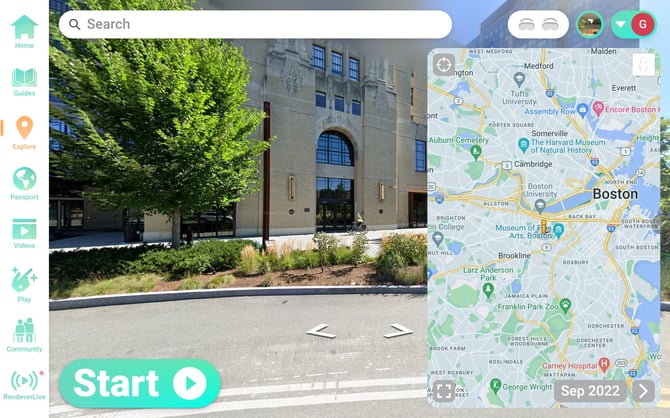
How to Use the Explore Feature
Step 1: Access the Explore Feature:
- Navigate to the Engage app on your tablet.
- From the Engage dashboard, select "Explore" from the navigation bar on the left side of the screen.
- Pressing Start will display your current image to the VR headsets.
Step 2: Search for a Location
- Use the search bar at the top of the screen to enter an address or location you wish to explore.
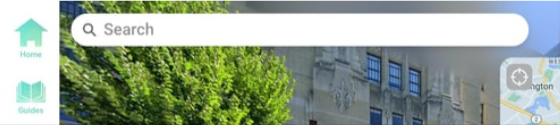
- Select the search button after selecting an address to find the immersive image associated with that address.
Step 3: Navigate the Map
- A map on the screen helps track your location. You can click on different spots on the map to move to various locations.
- Blue paths and circles on the map indicate where you can travel. Click on these to move along streets or to specific points of interest.

Step 4: View Images from Different Dates:
- At the bottom of the map, you will see the date the image was taken.
.png?width=670&height=162&name=Document%20sans%20titre%20-%20Google%20Documents%20(2).png)
- For locations with multiple images, click on the date to drop down a menu and select images from past dates. This allows residents to view the location through different times, adding a historical perspective to their exploration.
Step 5: Updating Headset Views:
-
Each time you change the image, an Update View button will pop up for you to press and display that location to the headsets
-
You can search for the ideal location while the headsets stay put in the last location you displayed, making it easy for you to guide the experience. They will only see something new once you select Update View!
Passport:
- Travel the globe, checking off countries you have travelled along the way.
- Passport curates Rendever experiences based on country, making it easy to visit someone's home, or visit somewhere they've always wanted to see.
- Passport also keeps track of everywhere you've been, so you can easily check countries off as you move across the globe.
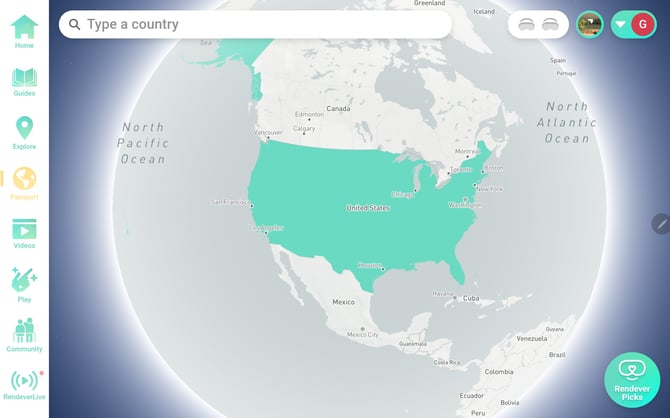
How to Use the Passport Feature
Step 1: Access the Passport Feature
- Open to the Engage app on your tablet.
- Select "Passport" :From the Engage dashboard, select "Passport" from the navigation bar on the left side of the screen.
Step 2: Explore the Globe
- The Passport feature will open a globe of the world.
- Rotate and zoom: Use your finger to rotate and zoom in on different parts of the globe.
- Select a country: Tap on a Country This will display all Rendever experiences related to that country and location.

Step 3: Select an Experience Type
After selecting a country, you will see a list of available experiences categorized into activity guides, videos, and explore locations.
- Activity Guides
.png?width=30&height=27&name=Rendever%20Director%20_%20Passport%20(3).png) : Structured tours with commentary and trivia.
: Structured tours with commentary and trivia. - Videos
.png?width=26&height=28&name=Rendever%20Director%20_%20Passport%20(1).png) : Immersive video experiences.
: Immersive video experiences. - Explore Locations
.png?width=29&height=26&name=Rendever%20Director%20_%20Passport%20(2).png) : Curated locations throughout the world
: Curated locations throughout the world
Step 4: Tracking Your Visits:
- Visual tracking with each country you visit will display in a deep shade of blue.
- Tracking progress by The more times you visit a country, the deeper the shade of blue will become, making it easy to keep track of where you have been.
Summary
To access the full interactive tutorial on how to use each Rendever feature, you can click on this link. The tutorial will walk you through each step of the process!
You are now ready to begin your Rendever experience!
Please contact our support team at support@rendever.com or by calling (857) 800-8032 for immediate assistance.